
Log In and Find Content
The Control Panel is the editing area for the website. Most editor work starts by choosing the correct site, then opening the collection that contains the content you want to change.
Log In
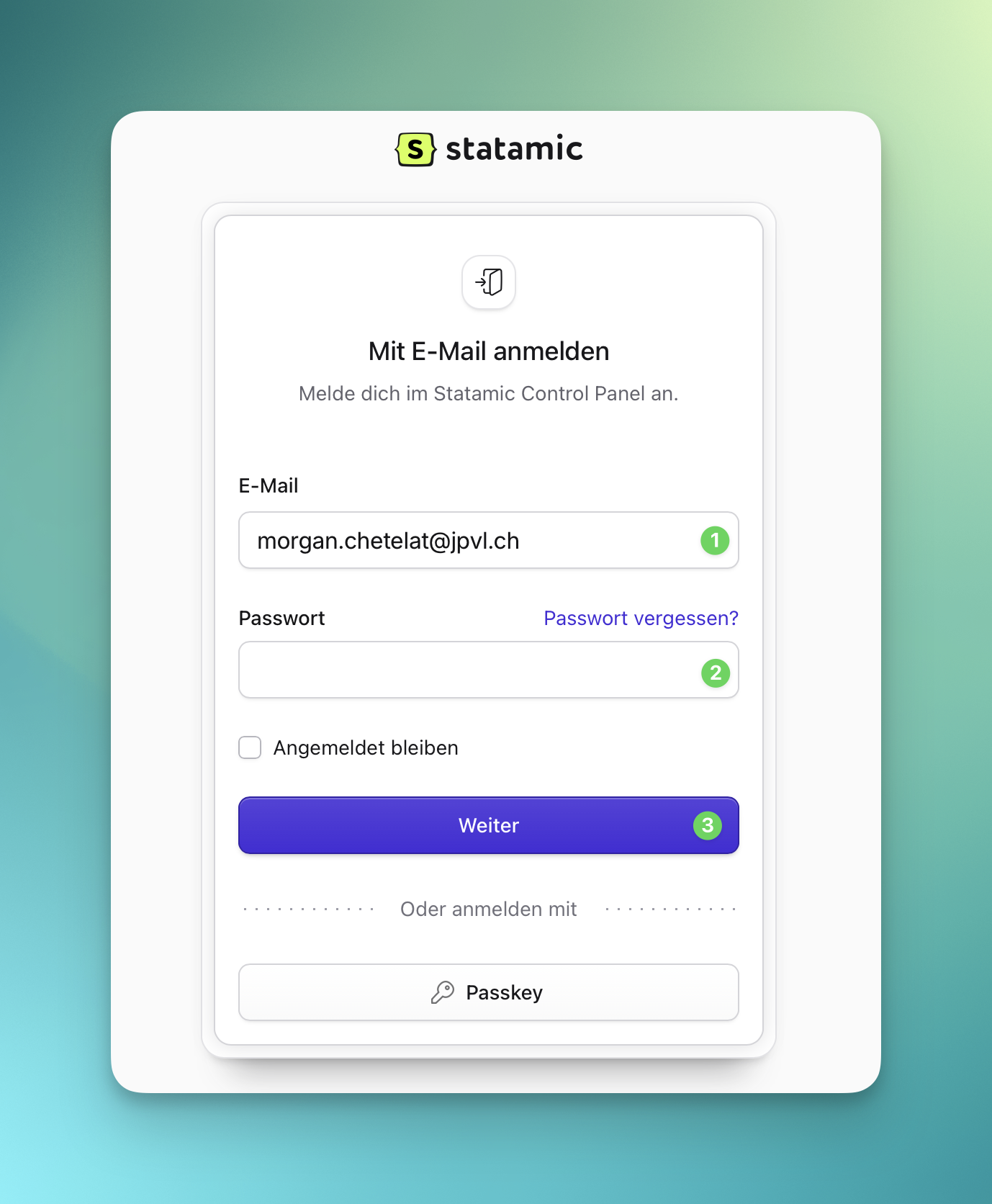
Section titled “Log In”- Open
/cp. - Enter your editor account email and password.
- If you cannot log in, ask a site administrator to check that your user is active and has the correct role.
Choose the Correct Site
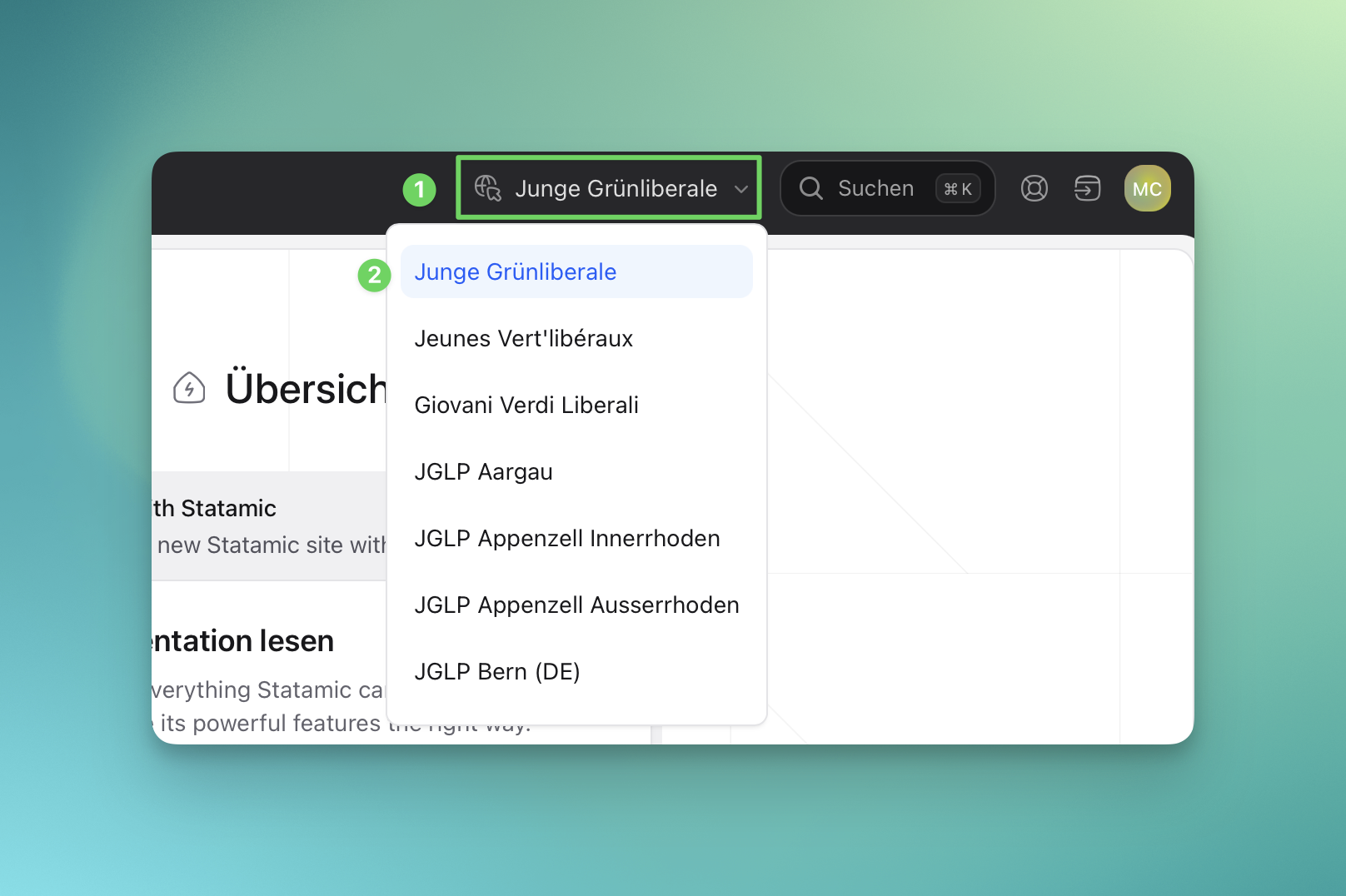
Section titled “Choose the Correct Site”Use the site switcher before opening an entry. The national site has German, French, and Italian language sites. Cantonal sites use their own configured language sites.
Changing the site switcher changes which localized content you are viewing and editing. It does not automatically translate content.
Find a Collection
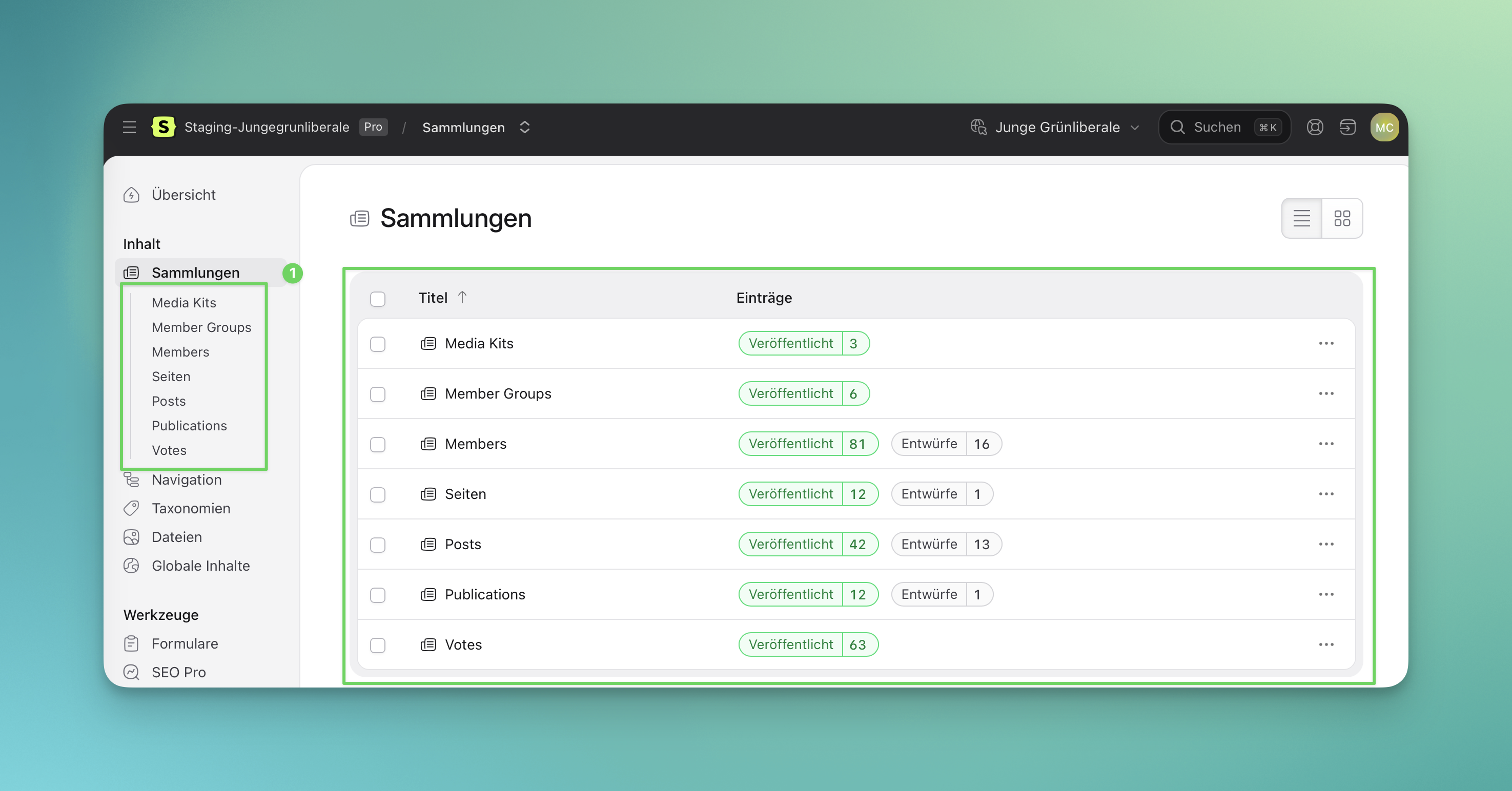
Section titled “Find a Collection”Open Collections and choose the content type:
| Collection | Use it for | |---|---| | Pages | Main website pages and their page-builder sections | | Posts | News posts, statements, and article-style content | | Publications | Downloadable or structured publications | | Members | People shown on member lists or author lists | | Member Groups | Groups such as board, office, or parliamentary groups | | Votes | Vote recommendations and results | | Media Kits | Download modules for logos, media files, and press material |
Open an Existing Entry
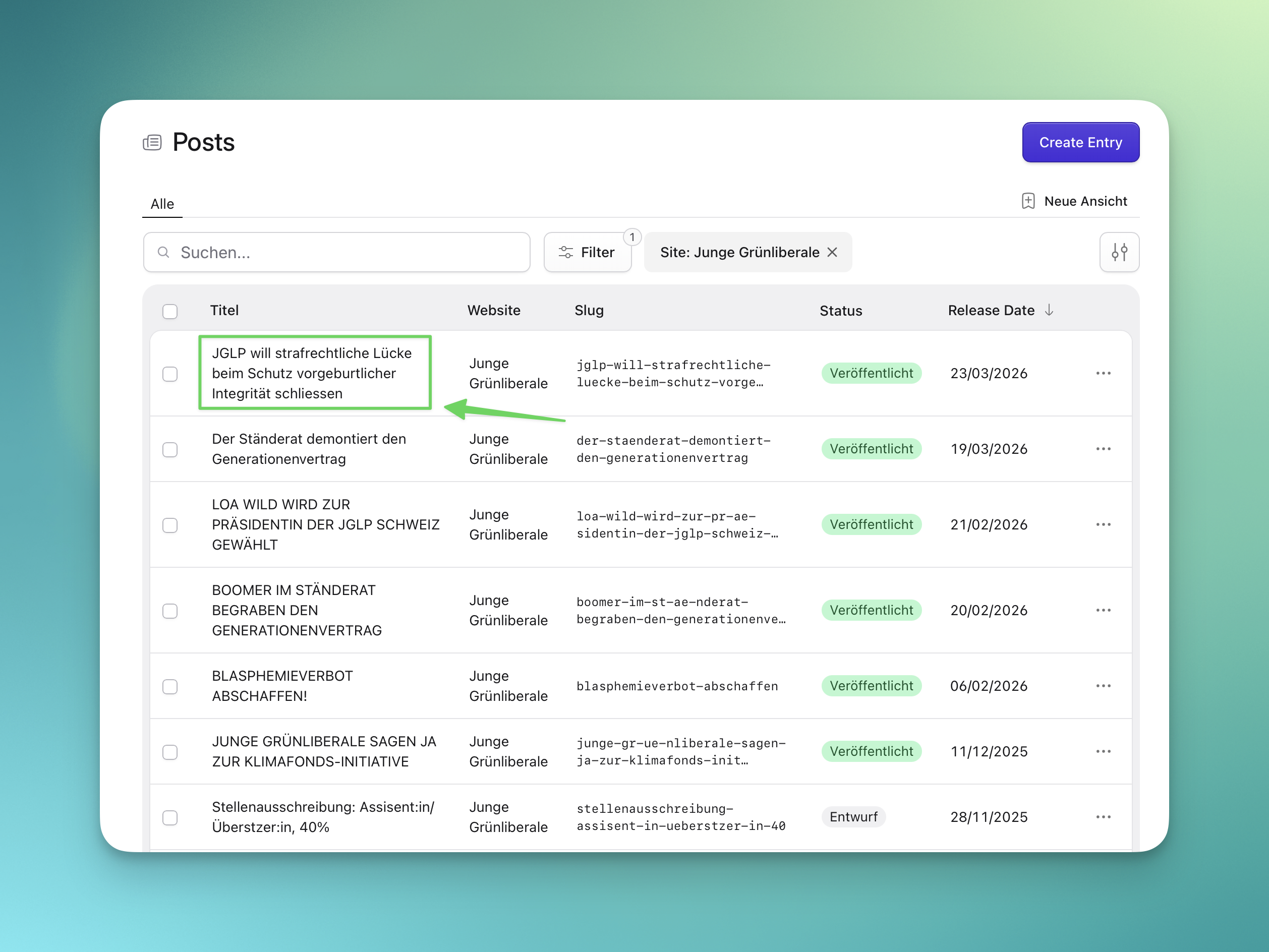
Section titled “Open an Existing Entry”- Open the collection.
- Use search or filters to find the entry.
- Open the entry title.
- Check the selected site again before editing localizable fields.
Create a New Entry
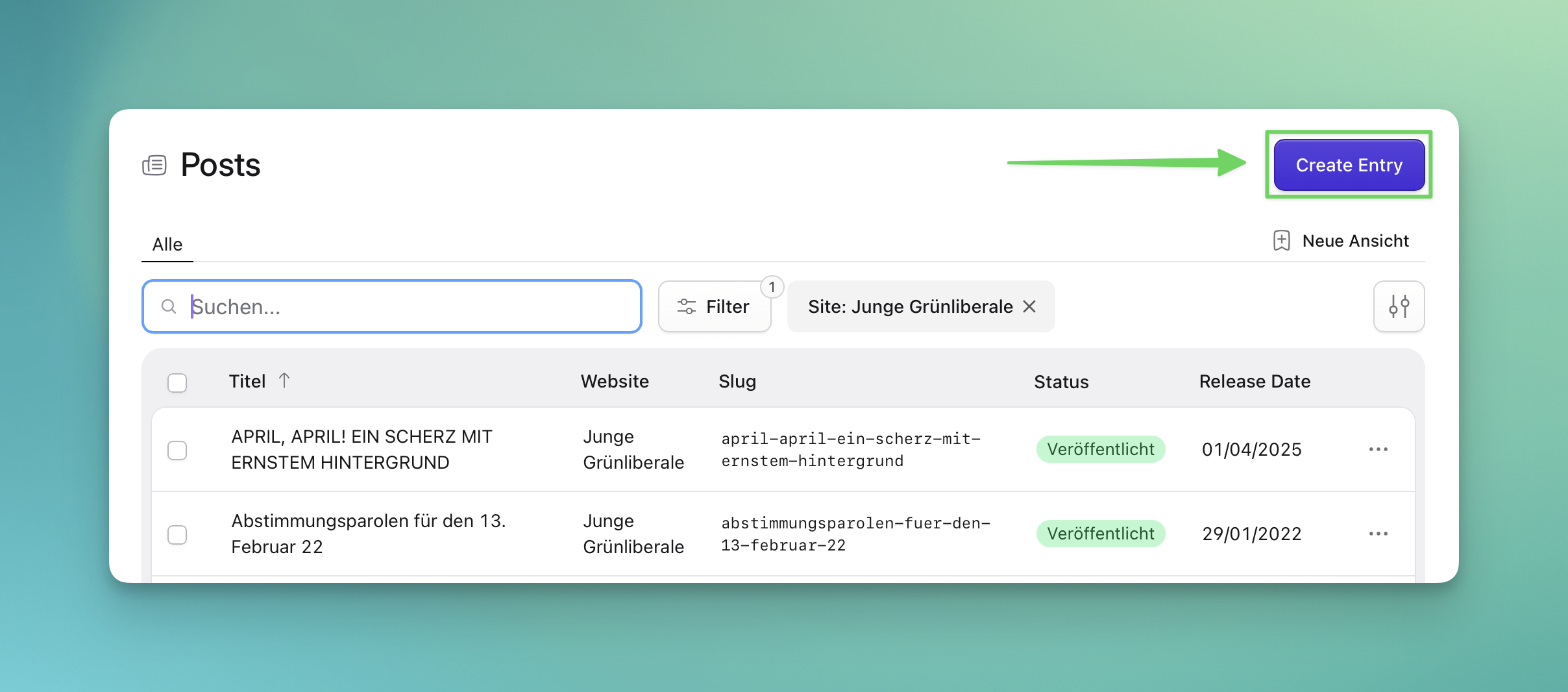
Section titled “Create a New Entry”- Open the collection.
- Select Create Entry.
- Fill in required fields first.
- Save as draft if the entry is not ready.
- Preview before publishing.
When You Are Unsure
Section titled “When You Are Unsure”Do not guess on public-facing political content. Save as draft and ask the responsible editor or technical editor to review the entry.