
Edit a Page
Pages are structured entries. Most pages are built from a list of sections such as intros, free text, calls to action, lists, and registration forms.
Open the Page
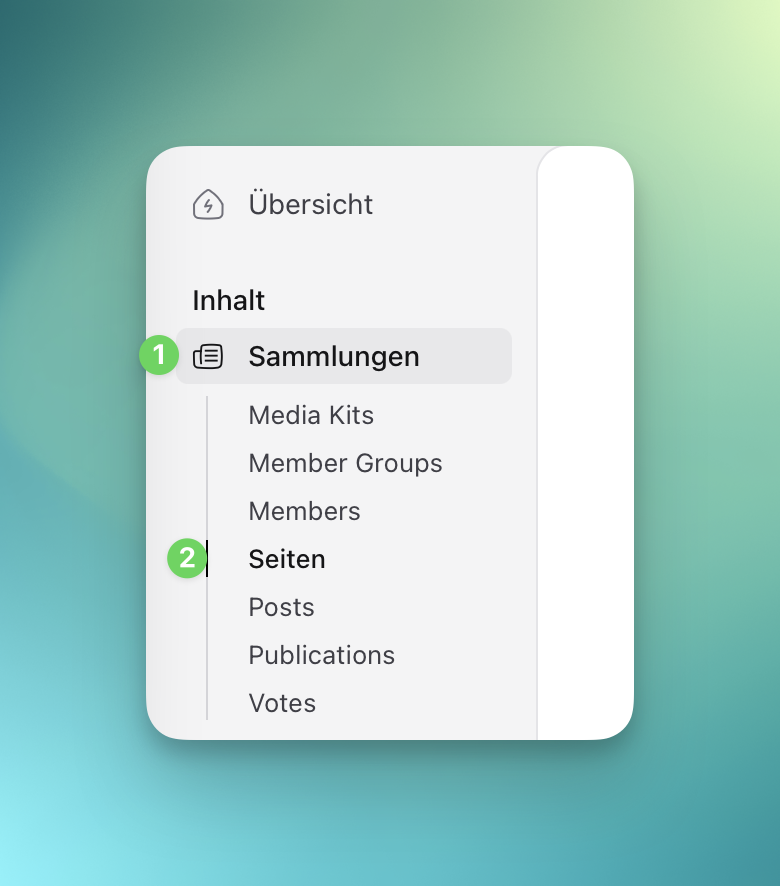
Section titled “Open the Page”- Open Collections.
- Choose Pages.
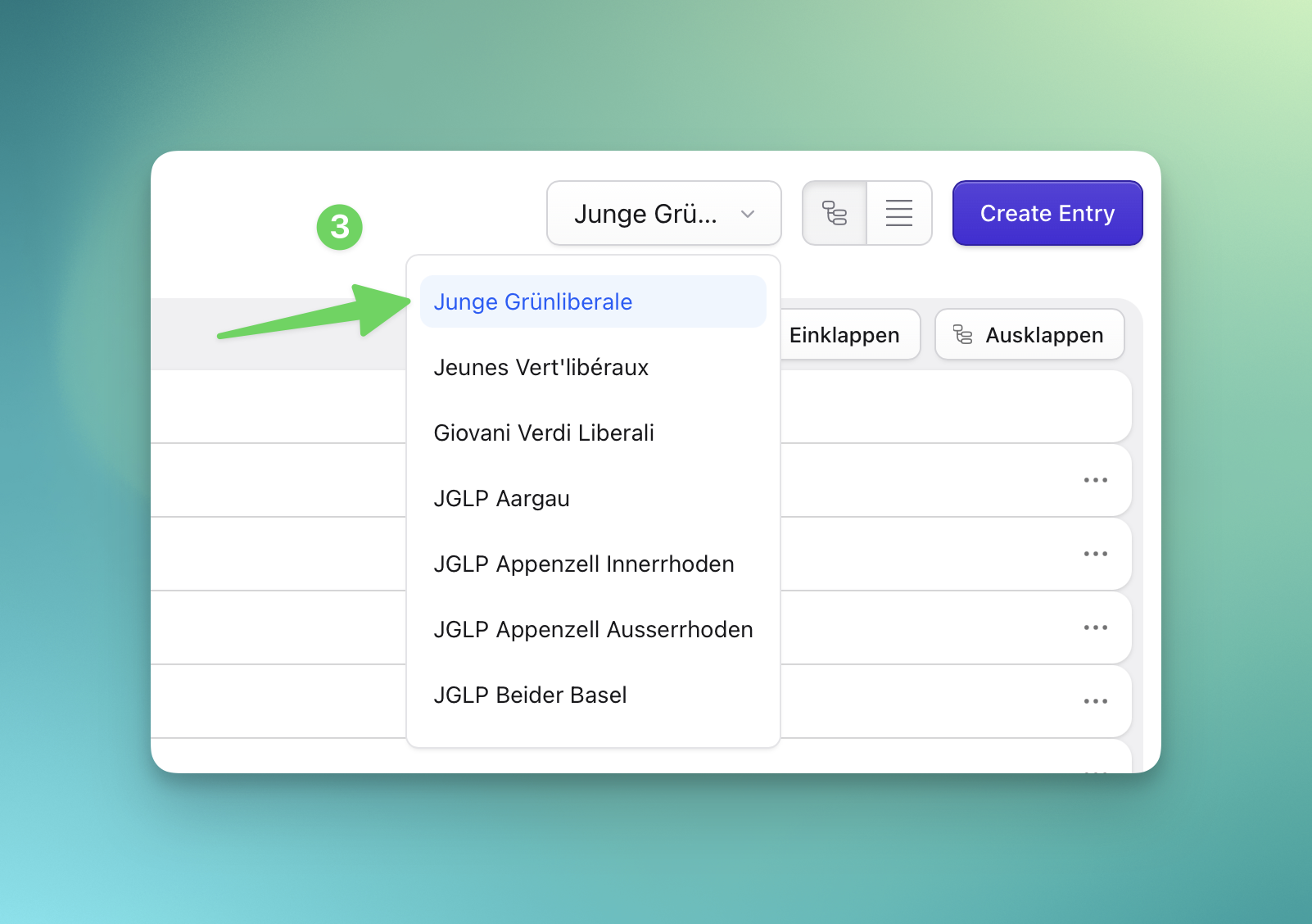
- Select the correct site in the site switcher.
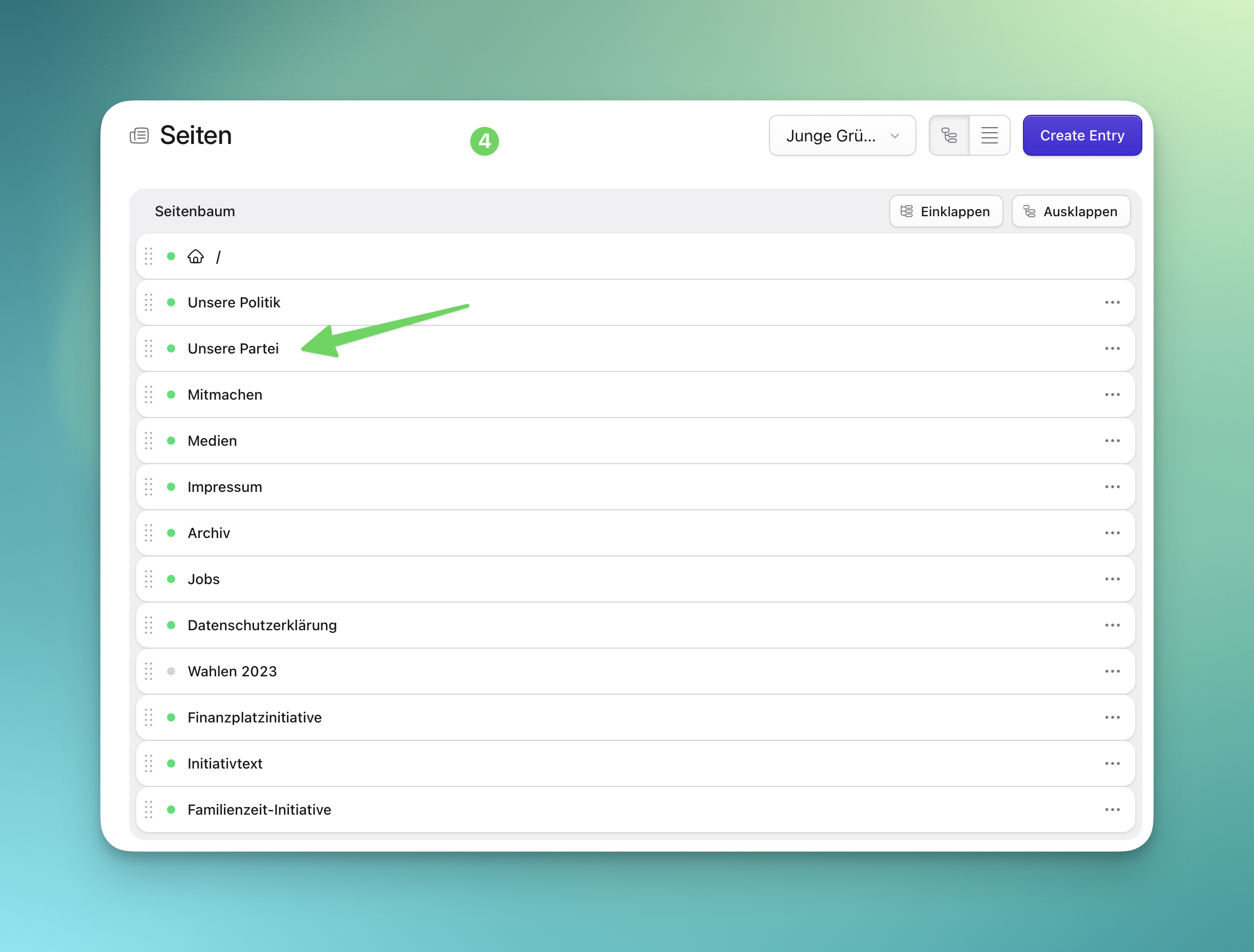
- Open the page you want to edit.
Edit Basic Page Fields
Section titled “Edit Basic Page Fields”Use Title for the page title shown in the browser and as the main heading where the template uses it.
Use Text only on pages that use the simple legal/privacy text template. Most public pages use Sections instead.
Edit Sections
Section titled “Edit Sections”The Sections field is a page builder. Each block has a type and its own fields.
- Open the Sections field.
- Expand the section you want to change.
- Edit text, links, images, or settings inside that section.
- Drag sections to reorder them.
- Add a new section only when the page needs a new content block.
- Remove a section only after confirming it is no longer needed.
Common Section Fields
Section titled “Common Section Fields”| Field | What to enter |
|---|---|
| Header or Title | Short heading for the section |
| Subheader or Lead | Supporting text under a heading |
| Background Image | A landscape image, usually for an intro section |
| Button Label | Short action text such as “Join” or “Donate” |
| Button URL | A local path such as /join or a full external URL |
| Anchor ID | Optional direct-link target, using lowercase letters, numbers, and hyphens |
Images on Pages
Section titled “Images on Pages”Upload images through the asset picker in the field that needs the image. For intro background images, use a wide landscape image. Avoid uploading very small or heavily cropped source images.
Save and Preview
Section titled “Save and Preview”- Save the entry.
- Use Preview to check the public page.
- Check desktop and mobile widths when the section contains long headings, buttons, or multiple columns.
- Publish only after the page looks correct in the selected site.